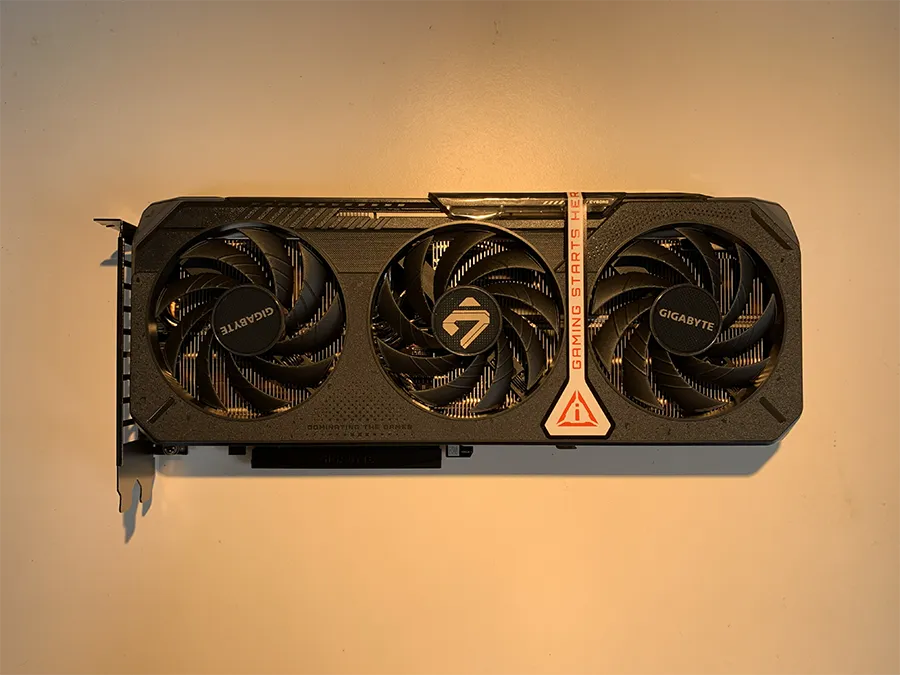
When a local language model fits entirely in VRAM, the graphics card does almost all the work. When it doesn’t, part of the model runs on the rest of the computer, and the platform around the GPU starts to decide how fast you get answers.
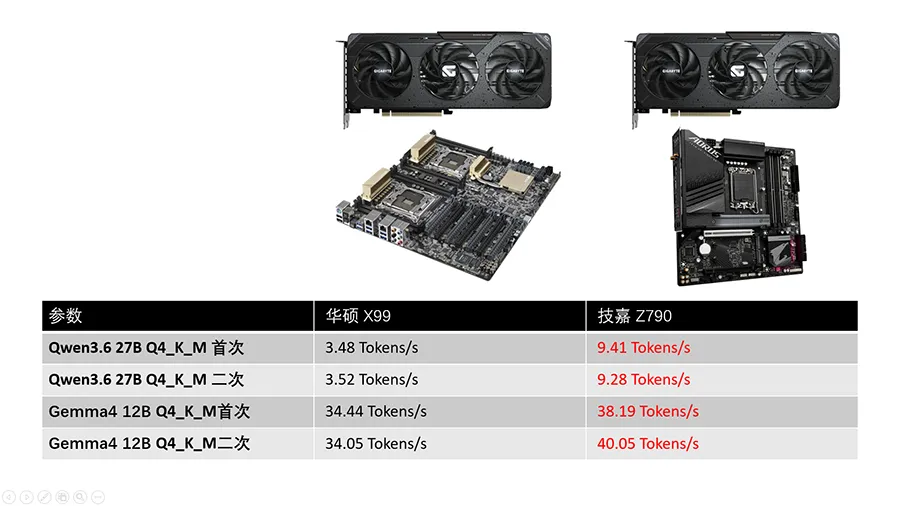
We tested this with one RTX 5060 Ti 16GB, two models, and two very different PCs. Moving the card from an older PCIe 3.0 / DDR4 workstation to a newer PCIe 5.0 / DDR5 gaming PC took a 27B model that doesn’t fit in 16 GB of VRAM from 3.52 to 9.28 tokens/s (+164%). A 12B model that fits went from 34.05 to 40.05 tokens/s (+18%).
For context: in an earlier comparison, the same 27B model ran close to nine times faster on a Tesla V100 32GB, which can hold the whole model in VRAM. This test asks how much of that gap a better host platform can close without changing the GPU.
Test setup
The graphics card, models, and inference software stayed the same. Everything around the card changed.
| Old platform | New platform | |
|---|---|---|
| Motherboard | ASUS X99 (dual-socket) | Gigabyte Z790 |
| CPU | 2 × Intel Xeon E5-2697 v3 | Intel Core i5-14600KF |
| System RAM | 64 GB DDR4-2133 (4 × 16 GB) | 32 GB DDR5-6400 (2 × 16 GB) |
| Storage | SATA SSD | M.2 PCIe 4.0 x4 NVMe SSD |
| Operating system | Windows 10 22H2 | Windows 11 25H2 |
| GPU link | PCIe 3.0 | PCIe 5.0 x8 (confirmed in GPU-Z) |
| GPU | RTX 5060 Ti 16GB | RTX 5060 Ti 16GB |
The RTX 5060 Ti has an eight-lane PCIe interface, so it runs at x8 even in an x16 slot.
Software and models:
- Runtime: Ollama running in Docker, context length 32,768 tokens (as reported by
ollama ps). - Qwen3.6-27B, Q4_K_M (
qwen3.6:27b, 19 GB inollama ps). Too large for 16 GB of VRAM. - Gemma 4 12B, Q4_K_M (
gemma4:12b, 8.4 GB inollama ps). Fits in VRAM. - Each model was run twice on each platform; the speed reported is Ollama’s generation speed (eval rate).
Because the CPU, memory, storage, and operating system all changed together, treat this as an old-platform-versus-new-platform comparison, not an isolated PCIe or DDR5 test.
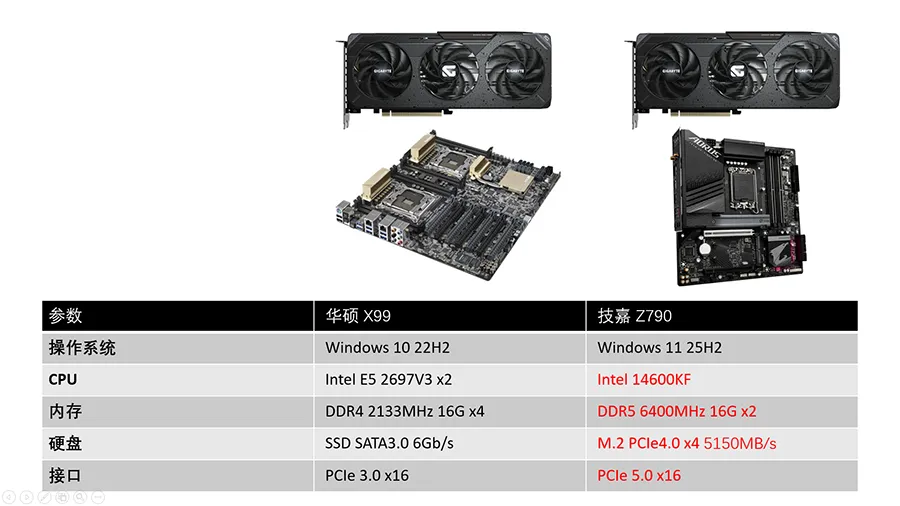
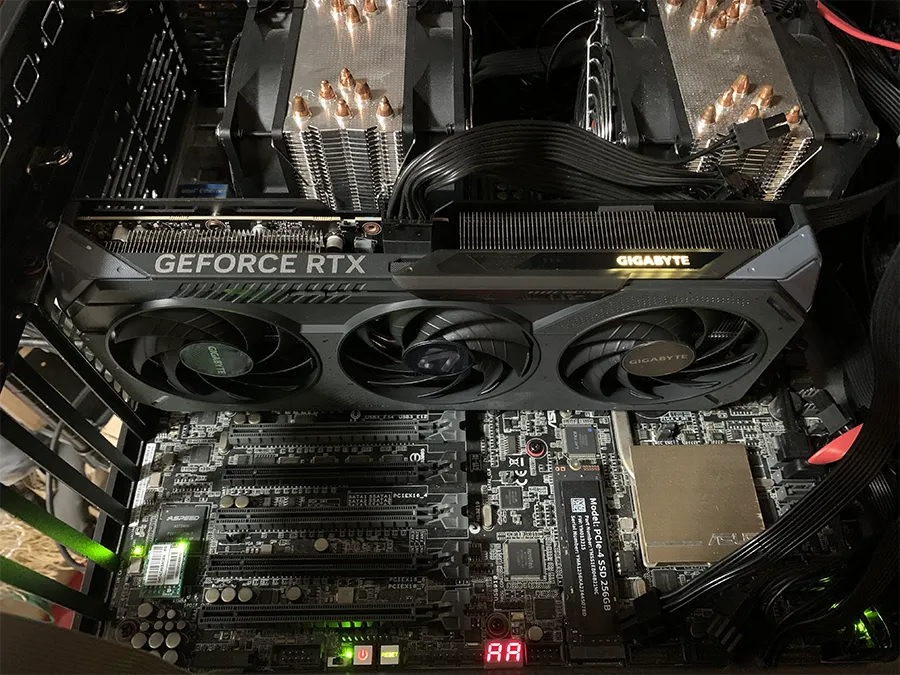
The old system is a dual-socket X99 workstation we keep for compatibility testing with older hardware:
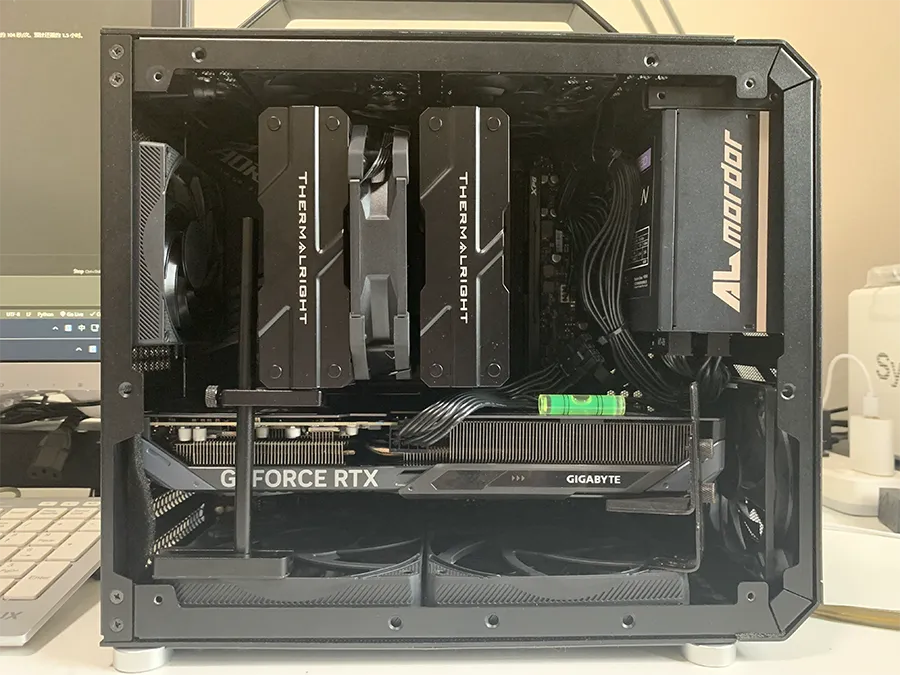
The new system is a Z790 gaming PC:
Results
| Model | Run | Old platform (X99) | New platform (Z790) | Change |
|---|---|---|---|---|
| Qwen3.6-27B Q4_K_M | First | 3.48 tokens/s | 9.41 tokens/s | +170% |
| Qwen3.6-27B Q4_K_M | Second | 3.52 tokens/s | 9.28 tokens/s | +164% |
| Gemma 4 12B Q4_K_M | First | 34.44 tokens/s | 38.19 tokens/s | +11% |
| Gemma 4 12B Q4_K_M | Second | 34.05 tokens/s | 40.05 tokens/s | +18% |
Qwen3.6-27B: from frustrating to usable
On the new platform, ollama ps shows the 27B model split 28% CPU / 72% GPU. Task Manager shows 15.4 of 16.0 GB of dedicated GPU memory in use and 18.7 GB of system RAM.
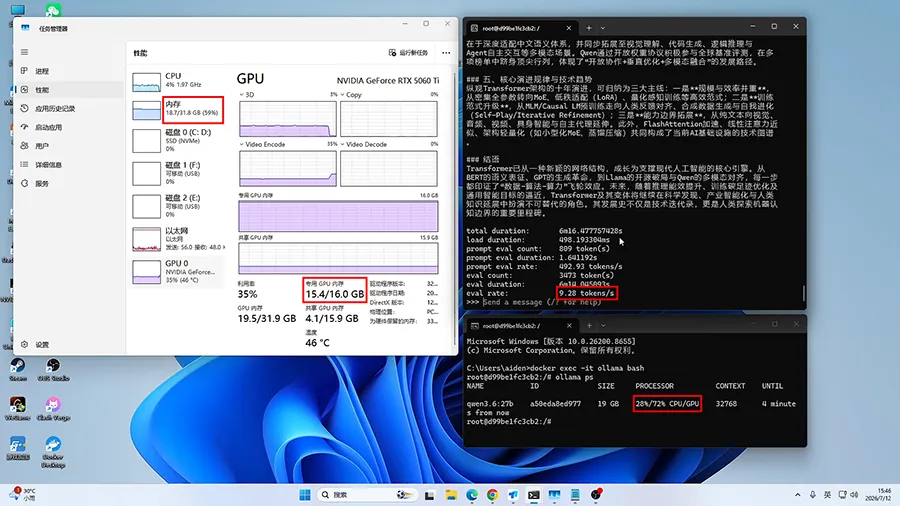
The difference was obvious in use. On the old platform, we often waited around three seconds before the first word appeared. On the new one, replies started almost as soon as the prompt was sent. About 9 tokens/s is not fast, but it moves a 27B model from frustrating to usable for everyday chat.
Gemma 4 12B: a smaller but real gain
The 12B model runs 100% on the GPU, using 10.1 of 16.0 GB of dedicated GPU memory.
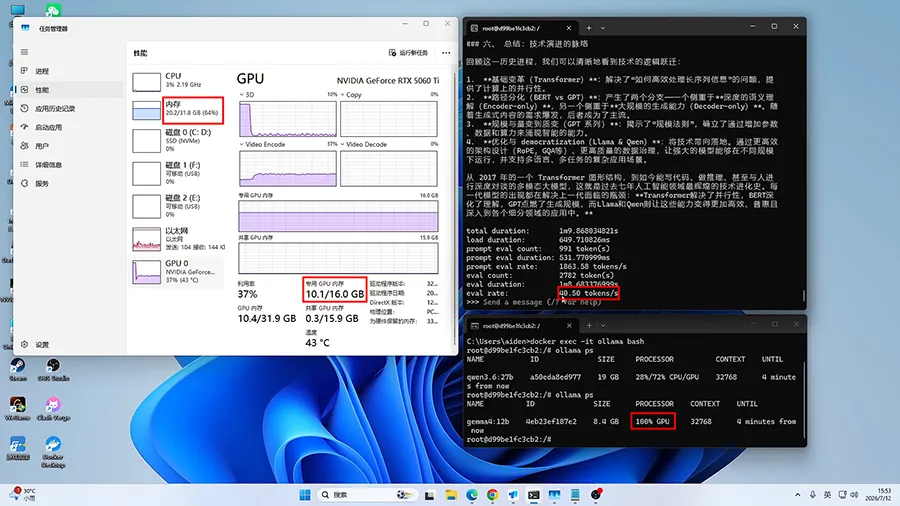
An 18% gain may look small next to 164%, but it comes on top of an already quick 34 tokens/s, without touching the GPU.
Why one model gained 164% and the other 18%
The short answer: the 12B model fits in VRAM and the 27B model does not.
When the whole model lives in VRAM, almost every step of token generation happens on the GPU. Speed is set mainly by GPU compute, VRAM bandwidth, and how well the runtime’s kernels are optimized. The CPU, system RAM, and PCIe link handle comparatively little, so a platform upgrade helps only at the margins. The remaining gain for Gemma 4 12B likely comes from faster CPU-side work and the newer OS and driver stack, but this test cannot separate those.
When the model doesn’t fit, Ollama splits its layers between the GPU and CPU. Every generated token has to pass through the CPU-side layers, which are computed by the CPU from system RAM. The GPU finishes its share quickly and then waits, so the slowest part of the pipeline—now the host platform—sets the pace.
What made the difference: CPU, memory, or PCIe?
All three improved at once, so the test can’t rank them precisely. Here is how each one plausibly contributes to a CPU/GPU split:
- CPU: a 14th-gen Core i5 with much higher clock speeds versus two 2014-era Haswell Xeons. The CPU computes its share of the layers for every token.
- Memory bandwidth: DDR5-6400 versus DDR4-2133. CPU-side layers are read from system RAM for each token, so memory bandwidth directly limits their speed. A dual-socket board can also add cross-socket memory traffic when work spans both CPUs.
- PCIe: PCIe 5.0 x8 has four times the theoretical bandwidth of PCIe 3.0 x8 (about 31.5 versus 7.9 GB/s per direction). This matters most when large amounts of data move between system RAM and VRAM, such as loading a model. During steady generation with a layer split, the data crossing PCIe per token is comparatively small.
Our reading is that the CPU and memory subsystem probably account for most of the 27B gain, with PCIe playing a smaller role during generation. The way to check is to keep the new platform and change one variable at a time, for example forcing the PCIe slot to Gen 3 in the BIOS and re-running the same prompt.
What this means for your own setup
- Check where your model runs. In Ollama,
ollama psshows the CPU/GPU split in the PROCESSOR column. If it says 100% GPU, the GPU is your main lever. - If the model spills over, look at the whole PC. A fast GPU in an old host can leave a large share of its potential unused for oversized models.
- Before buying a bigger GPU, try to make the model fit. A smaller quantization or a shorter context length can reduce VRAM use enough to avoid a CPU/GPU split, at some cost in quality or context.
- Change one thing at a time when you test. Platform upgrades bundle several changes; isolating them tells you what is actually worth paying for.
Conclusion
For models that fit in VRAM, the graphics card decides speed and a platform upgrade is a modest bonus—18% in our 12B test. For models that spill into system RAM, the rest of the PC can matter as much as the GPU: the same RTX 5060 Ti ran a 27B model 2.6 times faster after moving to a newer platform. If a large model feels slow, check the CPU/GPU split before assuming you need a new graphics card.
Useful? Explore more practical guides in the AICoreShop library.